Keyboard Shortcuts in RemotePC
RemotePC supports keyboard shortcuts to perform common actions during a session. These shortcuts work based on your keyboard shortcut settings, which determine whether inputs are applied on the local or remote computer.
On the application window
Ensure the RemotePC window is in focus.
| Action | Windows | Mac |
|---|---|---|
| Refresh computer list | F5 or Ctrl + R | Cmd + R |
| Expand all groups | Win + Alt + Right Arrow | Option + Cmd + Right Arrow |
| Collapse all groups | Win + Alt + Left Arrow | Option + Cmd + Left Arrow |
Note: Expand/Collapse shortcuts may not work on Windows 11 local computer.
During a remote session
Ensure the remote session window is in focus.
Monitor switching
| Action | Windows | Mac |
|---|---|---|
| Switch to a specific monitor | Ctrl + Alt + <monitor number> | Ctrl + Cmd + <monitor number> |
| Switch to next monitor | Ctrl + Alt + Right Arrow | Ctrl +Cmd+ <right arrow> |
| Switch to previous monitor | Ctrl + Alt + Left Arrow | Ctrl + Cmd + <Left arrow> |
View options
| Action | Windows | Mac | Description |
|---|---|---|---|
| Toggle full screen | Ctrl + Alt + F | Ctrl + Cmd + F | Enable or exit full screen mode |
| Clear all annotations | Alt + / | Option + / | Remove all annotations from the screen |
Other actions
| Action | Windows | Mac |
|---|---|---|
| Paste as keystroke | Ctrl + Alt + V | Cmd + Option + V |
System shortcuts
Mac
| Shortcut | Function |
|---|---|
| Command + Tab | Switch app |
| Command + H | Hide window |
| Command + M | Minimize window |
| Command + ` | Cycle windows |
| Command + Space | Open Spotlight |
Windows
| Shortcut | Function |
|---|---|
| Alt + Tab | Switch app |
| Shift + Alt + Tab | Switch app (reverse) |
| Windows + D | Show/hide desktop |
| Windows + M | Minimize all windows |
| Windows + Shift + M | Restore windows |
| Windows + Tab | Task view |
Input-releasing shortcut
This feature allows you to release control from the remote session and apply shortcuts on the local computer.
| Platform | Shortcut |
|---|---|
| Windows | Ctrl + Alt |
| Mac | Ctrl + Command |
Example:
When connected from Windows to Windows, pressing Alt + Tab switches apps on the remote computer.
After enabling input release and pressing Ctrl + Alt, shortcuts apply to the local computer instead.
Remap Cmd/Ctrl key (cross-platform)
RemotePC supports keyboard shortcuts across cross-platform connections (Windows to Mac and Mac to Windows).
This feature, available as 'Remap CMD key in shortcuts' under Keyboard Shortcuts, remaps the Command and Control keys between Mac and Windows systems.
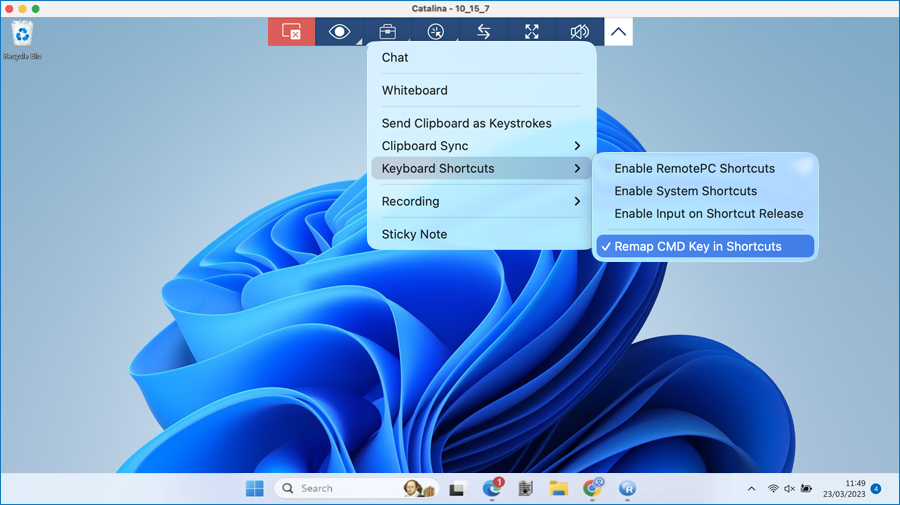
Examples:
- When connecting from a Mac to a Windows computer, Cmd + C functions as Ctrl + C
- When connecting from a Windows computer to a Mac, Ctrl + C functions as Cmd + C
Cross-platform keyboard shortcuts
Note: We only remap exact matching shortcuts listed below. Other shortcuts with similar key combinations are not supported.
| From MacOS | To Windows | |
|---|---|---|
| Select all | Cmd + A | Ctrl + A |
| Copy | Cmd + C | Ctrl + C |
| Paste | Cmd + V | Ctrl + V |
| Undo | Cmd + Z | Ctrl + Z |
| Cut | Cmd + X | Ctrl + X |
| Save | Cmd + S | Ctrl + S |
| Find | Cmd + F | Ctrl + F |
| Cmd + P | Ctrl + P | |
| Open file | Cmd + O | Ctrl + O |
| New window | Cmd + N | Ctrl + N |
| Close window | Cmd + W | Ctrl + W |
| New tab | Cmd + T | Ctrl + T |
| From Windows | To macOS | |
|---|---|---|
| Select all | Ctrl + A | Cmd + A |
| Copy | Ctrl + C | Cmd + C |
| Paste | Ctrl + V | Cmd + V |
| Undo | Ctrl + Z | Cmd + Z |
| Cut | Ctrl + X | Cmd + X |
| Save | Ctrl + S | Cmd + S |
| Find | Ctrl + F | Cmd + F |
| Ctrl + P | Cmd + P | |
| Open file | Ctrl + O | Cmd + O |
| New window | Ctrl + N | Cmd + N |
| Close window | Ctrl + W | Cmd + W |
| New tab | Ctrl + T | Cmd + T |