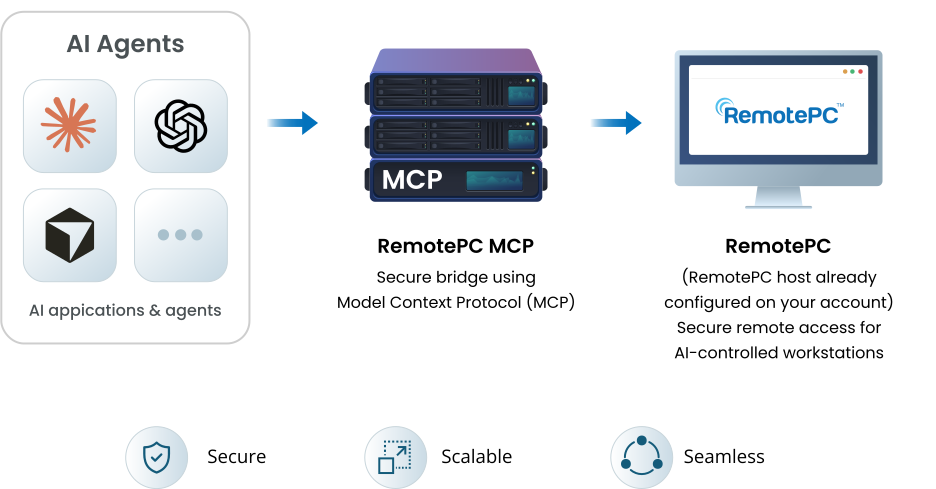
AI agents are good at reasoning, but they need structured tools to interact with real computers.
The Model Context Protocol (MCP) provides that connection. Instead of relying on screen scraping or guesswork, an agent can call a specific tool, receive a structured result, and use that result to decide what to do next.
With RemotePC MCP, one connection gives your agent access to every configured and online computer in your RemotePC account.
Each action is a defined tool call, giving the agent a reliable way to interact with your computers.
Connect once and access every configured and online computer in your RemotePC account. There is no need to create a separate integration for each machine.
Your agent only gets the access you grant during the MCP session. Host-level protections and locked-desktop restrictions continue to apply.
RemotePC MCP provides structured tool calls and results that agents can chain together to complete multi-step tasks.
When a computer is online and reachable through RemotePC, your AI agent can use the available MCP tools to view the screen, interact with applications, retrieve files, and perform supported operations.
Manage your RemotePC account, view registered computers, review users and groups, and connect to devices.
List the computers registered to your account, with status and details.
List the computer and user groups set up on your account.
List the users associated with your account.
View account details, including plan, email, phone, and next billing date.
List invoices with amount, date, and charge description.
Generate a connection URL for a selected computer.
List the recently accessed devices on your account.
Capture the remote computer's screen so the agent can see the current desktop and understand what is displayed. Depending on the supported capture options, it can capture the full desktop, an individual monitor, or a specific window.
Retrieve a list of open windows on the remote computer. The agent can use window information to identify the relevant application and determine where to interact before clicking or typing.
Move the cursor, click buttons, scroll through content, and drag items on the remote computer. This allows the agent to navigate application interfaces and interact with on-screen controls.
Type text and send keyboard shortcuts, such as Ctrl+S or Alt+F4, to the remote computer. The agent can use keyboard input to enter information, operate applications, and perform supported actions.
Fill out desktop forms, search boxes, and application fields without manual typing. The agent can click a field, enter text or configuration values, and use keyboard actions such as Tab or Enter to move between fields and submit information.
Navigate desktop applications using mouse clicks, scrolling, dragging, and double-clicking, combined with keyboard shortcuts. The agent can locate relevant content, interact with application controls, switch windows, and save work using supported keyboard commands.
Run commands on the remote computer and retrieve their output. The agent can use this tool to perform command-line tasks, check system information, and review results without manually opening a terminal.
Retrieve a file from the remote computer and provide a temporary download link. This allows the agent or user to access the file without manually browsing the remote computer's folders to transfer it.
Send an on-screen message to the person using the remote computer. The agent can use this tool to share updates, explain an action, or notify the user about an operation.
Schedule a restart or cancel a scheduled restart on the remote computer. The tool can also display a warning message before restarting, helping inform the person at the computer before the restart takes place.
Update the RemotePC application to help keep it current. This tool allows the agent to initiate the supported update process without requiring the user to start it manually.
Connect RemotePC to your AI client to access your configured computers. Sign in, choose your permissions and session duration, and start working with your computers through your AI agent.
https://mcp.remotepc.com/mcp
When prompted, sign in with the RemotePC account you use to manage your computers.
You can sign in with your email and password, Google, Microsoft, Apple, or SSO, depending on your account setup. If two-factor authentication is enabled, complete that step as well.
RemotePC uses OAuth 2.1 to authenticate your connection. Your sign-in credentials are not shared with the AI client.
Choose what your AI client can access and how long the connection should remain active.
Permissions: View Only or Full Control
Choose a session duration between 12 hours and 30 days.
Use natural language prompts to ask your AI agent to list your configured computers and perform supported tasks on an available computer.
Your agent can help with routine tasks without requiring you to start a full remote-control session every time.
"Take a screenshot of Reception-PC. If you see the application error, close the affected application and tell me what happened."
"Check what is running on Finance-Laptop, and check the available disk space. Explain anything that looks unusual."
"Check Lobby-Kiosk for a pending RemotePC update. If one is available and updates are enabled, install it and confirm the result."
"Take a screenshot of Mom's computer and explain what the pop-up is asking her to do."
"Get today's export from the Downloads folder on Finance-Laptop and provide the file."
"Send a message to the person at the computer letting them know I'm about to restart it."
"Use View Only access to check the computer and tell me what you find. Don't make any changes."
Grant access for the duration of a task and let the session expire when you're done.
"Open the application I need on the office computer so it's ready when I sit down."
"Check the print queue, clear any stuck jobs, and send a test page."
Your agent only gets what the host already allows
RemotePC MCP follows the same trust model and host-level protections enforced by RemotePC.
Screen capture, mouse control, keyboard control, and window listing are blocked when the computer is locked, displaying a screen saver, or showing a secure desktop.
Screenshots and retrieved files are provided through short-lived signed URLs rather than being returned directly as inline Base64 data.
Each host processes one tool call at a time. If another action is already in progress, the request returns a busy/retry response.
Every MCP session has an explicit permission level. View Only provides observation capabilities, while Full Control provides access to interactive and action-based tools allowed by the host.
Every session has a defined duration. Once the session expires, authorization ends and subsequent tool calls fail. There is no silent renewal.
Let an AI agent help triage issues, inspect computers, check logs, restart a stuck service, and verify a fix before a technician steps in.
Use one RemotePC MCP connection to work with configured client computers and assist with diagnostic and maintenance workflows.
Perform small tasks on an office computer from home without starting a full remote session.
Check a family member's computer with read-only, time-limited access when they need help.
