Claude with RemotePC MCP
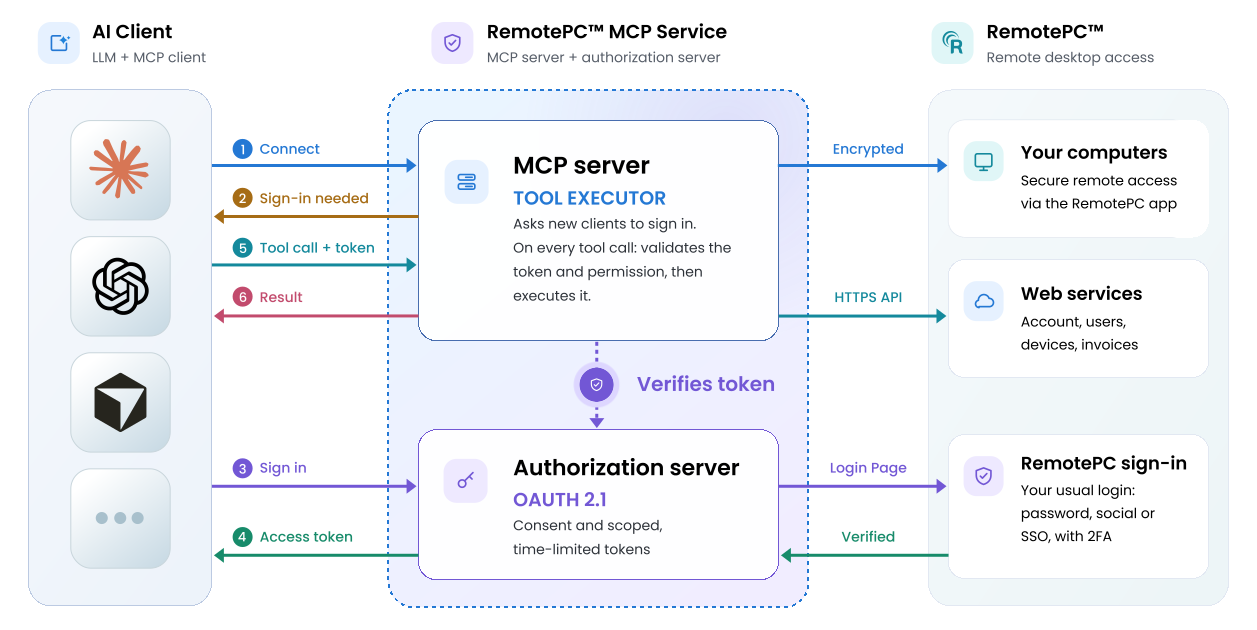
RemotePC MCP connects your RemotePC account with AI assistants and applications using the open Model Context Protocol (MCP) standard. It enables compatible AI clients to securely access supported RemotePC capabilities through standardized tools, without requiring custom integrations or scripts. This guide explains how to connect Claude with RemotePC MCP.
Prerequisites
- An active RemotePC account.
- Access to a Claude account.
Reference Architecture
Configure Claude with RemotePC MCP
- Sign in to Claude.
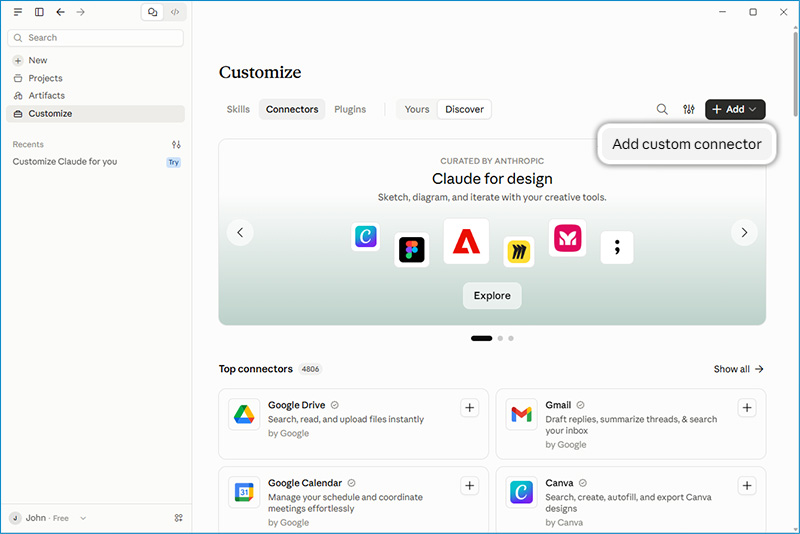
- Click Customize.
- Select Connectors.
- Click + Add and select Add custom connector.
-
In the Add Custom Connector dialog box, provide the following details and click Continue.
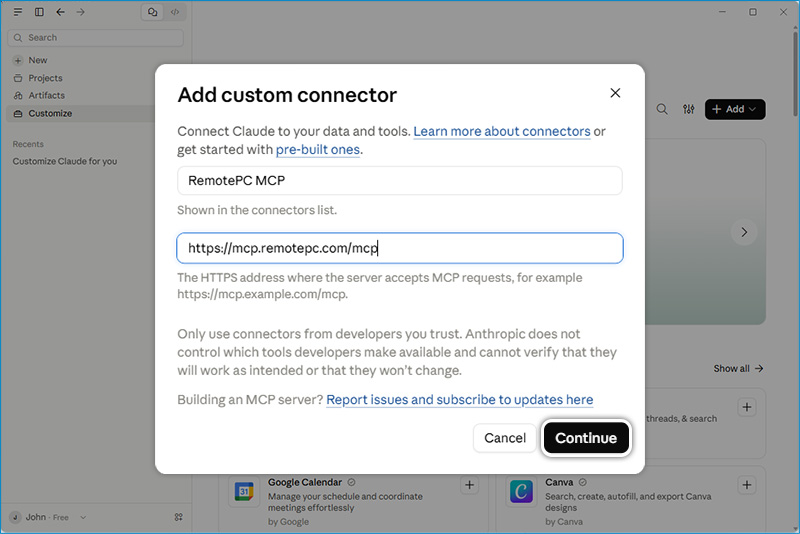
- Name: RemotePC MCP
- URL: https://mcp.remotepc.com/mcp
-
On the next screen, select the following options and click Add:
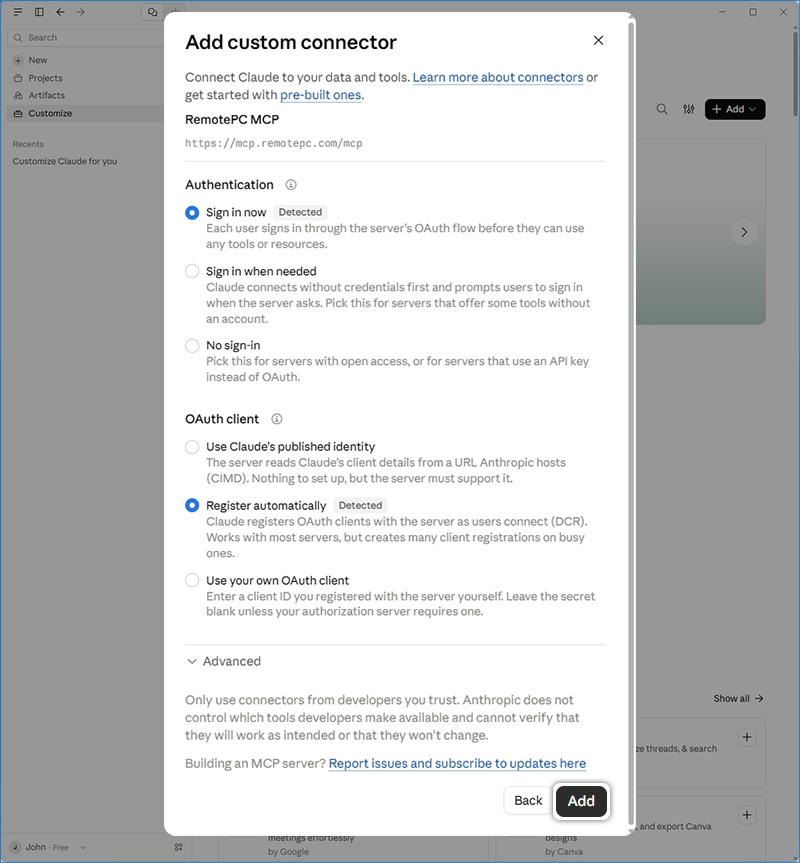
- Authentication: Sign in Now
- OAuth client: Register automatically
- Click Connect to start the authorization process.
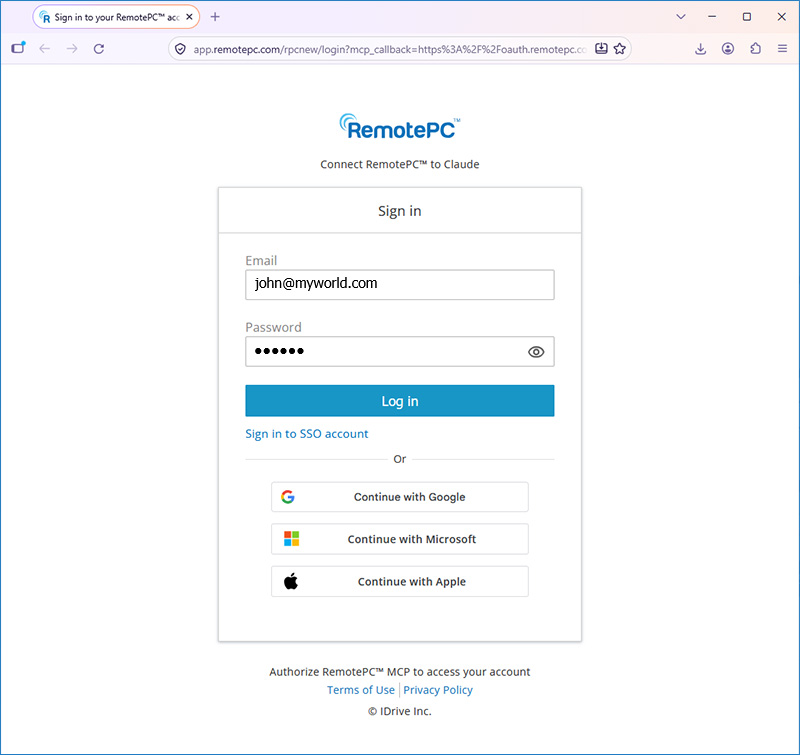
- You will be redirected to the RemotePC console. Sign in to your RemotePC account.
-
On the Session Settings page, configure the following:
- Session timeout: Set how long the MCP session remains active. The timeout can be specified in hours or days.
- Permission: Select Full Control or View Only access.
-
Click Authorize Access.
After authorization is complete, you will be redirected back to Claude.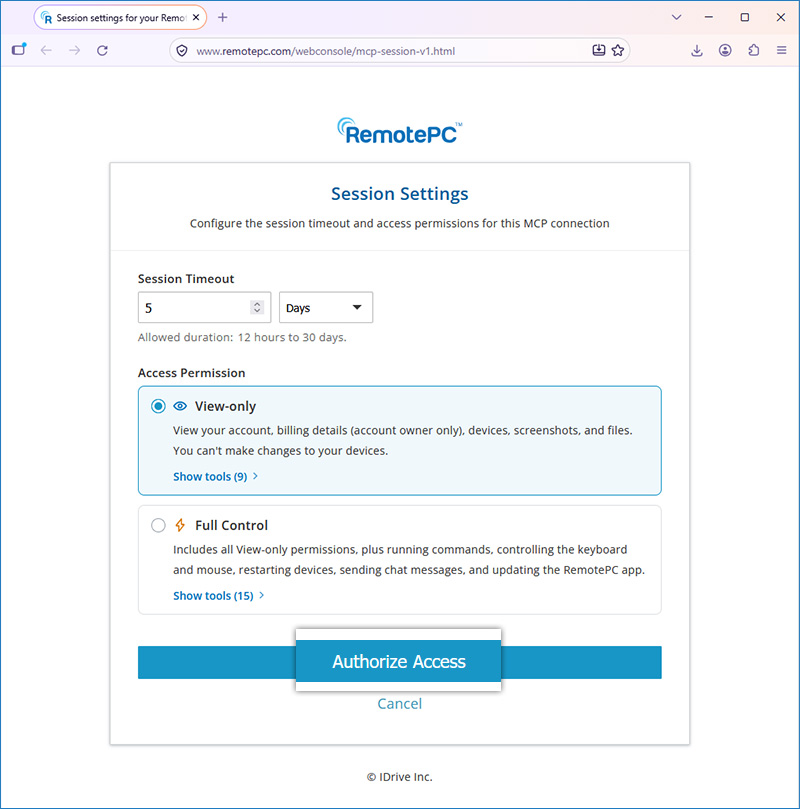
RemotePC MCP is now connected to Claude. You can start using the supported RemotePC tools through Claude. Reopen or refresh Claude if needed to make the RemotePC MCP tools available.
Configure Claude with RemotePC MCP using the CLI
You can also configure Claude to connect to RemotePC MCP using the Claude CLI.
-
Add the MCP server
{

    "mcpServers": {

        "RemotePC MCP": {

            "url": "https://mcp.remotepc.com/mcp"

         }

     }

} -
Sign in to RemotePC
claude mcp login remotepcA browser window opens to the RemotePC authorization page.
-
Authorize the connection
Sign in to your RemotePC account and configure the session timeout and access permission.
-
Complete authentication
After authorization, you will be redirected back to the Claude CLI automatically. If the redirect does not complete, follow the instructions displayed by the Claude CLI to complete the authentication.
-
Start using RemotePC MCP
Once authentication is complete, the RemotePC MCP tools are available in Claude. You can use Claude to access supported RemotePC account, device, and connectivity capabilities. Reopen or refresh Claude if needed to make the RemotePC MCP tools available.